FencR 3.0: Free Trial Classes, a Home for Your Coaches, and Attendance at a Glance
FencR 3.0 gives every club a free trial class that newcomers book in a couple of minutes, with a form you build like a Google Form and room for a parent to bring up to six kids. It adds a Coaching section with a Coaches page, assigned coaches, a Lessons page for roll call and creating lessons, and staff-only lesson notes. Attendance moves into Analytics as one simple, sortable table, lessons get a booking cutoff, and camps get pausing, clean unpublishing, and a cleaner builder. Free for every club, as always.
Every club has a version of the same first visit. Someone emails asking if they can try a class. A coach replies with three possible days, the newcomer picks one that has since filled, someone else forgets to tell the front desk, and the person who finally walks in is greeted with "sorry, and you are?"
FencR 3.0 turns that first visit into a booked class. A newcomer fills in a short form, picks a time from the practices you choose, and they are on the roster before anyone on your staff has opened their email. It is the biggest release since FencR 2.0, and it comes with a proper home for your coaching staff, attendance you can read in one glance, and a stack of schedule upgrades.
A free trial class, booked in a couple of minutes
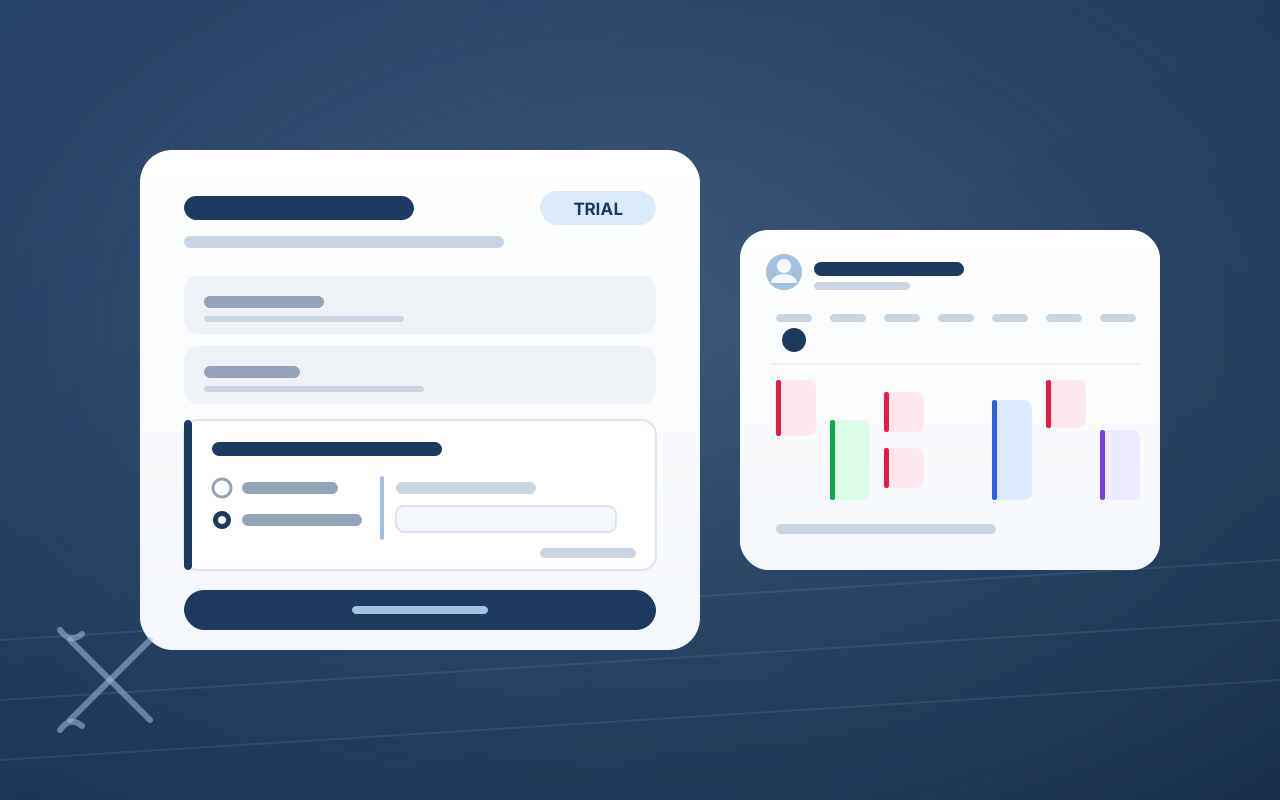
Free Trial is how newcomers come into your club in 3.0, and it takes the place of Leads & Pipelines. One setup, one link, the same experience from every door: your public club page, the Try Fencing button on your own website, or a link on a flyer.
- Turn it on, then add practices. Open Free Trial > Setup in the sidebar and flip the switch. Add the practices people can try with Add a practice, which searches every upcoming practice even at a club running dozens a week, or use Create a new practice to put one on your schedule right there.
- Build your form like a Google Form. Name and email are always asked. Everything else is a question card you click to edit: short answer, multiple choice, or yes or no, with Required, reordering, duplicating, and a row of suggested questions you add in one click. Preview shows the form exactly as a newcomer sees it, and you can fill it in yourself.
- Families are covered. Ask Who is this for? and a parent who picks My child is asked each child's first name and age, nested right under the question, with room for up to six children. When they choose a time they can book the same class for all of them at once, and each child gets their own free class.
- Every request lands on the Free Trial page. Each person shows one obvious next step, and their status updates itself: booking a class sets Booked, the roll call sets Came or Missed, and adding them to the club sets Joined. Nobody drags cards around a board. The full walkthrough is in the free trial classes guide.
Picture Saturday morning: a parent fills in the form for their twins at breakfast, books the 10am beginner class for both, and by the time the twins walk in, they are already on the coach's roster. The coach knows exactly who is coming, and the first thing the twins hear is their own names.
A Coaching section for your staff
The sidebar now has a Coaching group, and every other group in the sidebar carries a heading too, so a long admin nav reads at a glance.
- The Coaches page. Every coach in one table, with the weapons they coach, where they teach, and their groups. Open a coach to see their last 30 days (lessons given, attendance in their sessions, practices led), the athletes they work with, an About description your admins write, and a small week calendar of what they are teaching over the next seven days.
- Assigned coaches. Give an athlete one or more coaches and that athlete self-books private lessons with those coaches. Assign from the athlete's profile, from the coach's page, or in bulk: shift-click a range of members on the Members page and choose Assign Coach. Athletes and parents see their assigned coaches on their own home page, with a Book a lesson button for each, and staff can still book anyone with anyone. More in the assigned coaches guide.
- The Lessons page. Roll call for the day's private lessons with one-tap Given and No-show, the student-by-day ledger, and a Create lesson button. Click any athlete's name for a quick Create lesson with that athlete already picked.
- Lesson notes, for staff. A coach writes a note about one athlete on one session, right from the session roster, and every note collects on that athlete's profile. Notes are visible to your staff only, by design: they are the club's working record, not a report card.
Attendance, at a glance
Attendance now has its own tab in Analytics, and it is deliberately simple: four numbers and one table.
- The numbers that matter. Attendance rate, total attended, cancellations, and no-shows for any date range. The rate counts sessions your staff have marked, and the card tells you how many are still waiting for a roll call.
- Attendance over time. A chart of attended, missed, and cancelled sessions by day, week, or month, with the attendance rate beside it, following every filter you set.
- One row per athlete. Lessons attended, practices attended, cancellations, and missed practices, with avatars. Click any column to sort and filter by name, member group, session type, or coach. Every athlete on your roster appears, so the one who has quietly stopped coming stands out.
- One athlete's whole season. Click a name for that athlete's complete training activity in the period: every lesson and practice, who coached it, and whether they came.
- Export for Excel. Download the athlete summary or every session as a spreadsheet, ready for the board meeting. The attendance analytics guide covers every filter.
- Coaches see their own sessions. A coach opening Analytics gets My Coaching and Attendance scoped to the sessions they lead or assist.
A schedule that knows your rules
- Booking cutoff for lesson slots. When you publish bookable lesson slots, set Booking cutoff to a number of hours. Members cannot book inside that window, slots past their cutoff drop out of Schedule a Lesson, and the form warns you if a block you are creating has already passed its own cutoff. Staff can still book someone in at any time.
- Double-booking warnings. Put a coach on a session that overlaps one they are already running and FencR asks before saving. It is a warning, not a wall: sometimes a coach really does supervise open fencing while a lesson block runs.
- Busy sessions book cleanly. When two people go for the last spot at the same moment, exactly one gets it, and a double-tap never spends two credits.
- Projection by coach. Put the day on the club TV with a column per coach, in the coach order your admins set in Club Settings.
- Calendars you can read. Short lessons fit their cards, avatars sit next to names, and your members see their own sessions while other athletes' private lessons stay private.
Camps, upgraded
Camps got a full round of improvements in 3.0, from how you run registration to how the builder reads.
- Pause registration. Keep the camp page live while you stop new sign-ups, so families can still read about the week while the roster settles. People who already hold a spot can still finish paying. Reopen registration whenever you are ready.
- Unpublish cleanly. Take a camp's page down entirely without touching the people already coming: registered campers keep their spot and their sessions on the club schedule. Publish again brings the page back at the same link.
- Clear about every state. Live, Registration paused, Unpublished, and Cancelled each say exactly what the public sees, and every change asks you to confirm, with the number of signups in front of you.
- A builder that is easier on the eyes. Clear section headings, readable labels, bordered fields, and weapon chips that look plainly on or off, so building a camp page feels like filling in a well-made form.
Also in 3.0
- Roster-only athletes. Add an athlete with just a name, no email, for the kid whose parent handles everything.
- Drop-in, faster. Practice templates carry the drop-in setting, and admins can open drop-in for a whole practice category at once.
- Sign out on a phone. It sits right at the top of the mobile menu.