Attendance Analytics
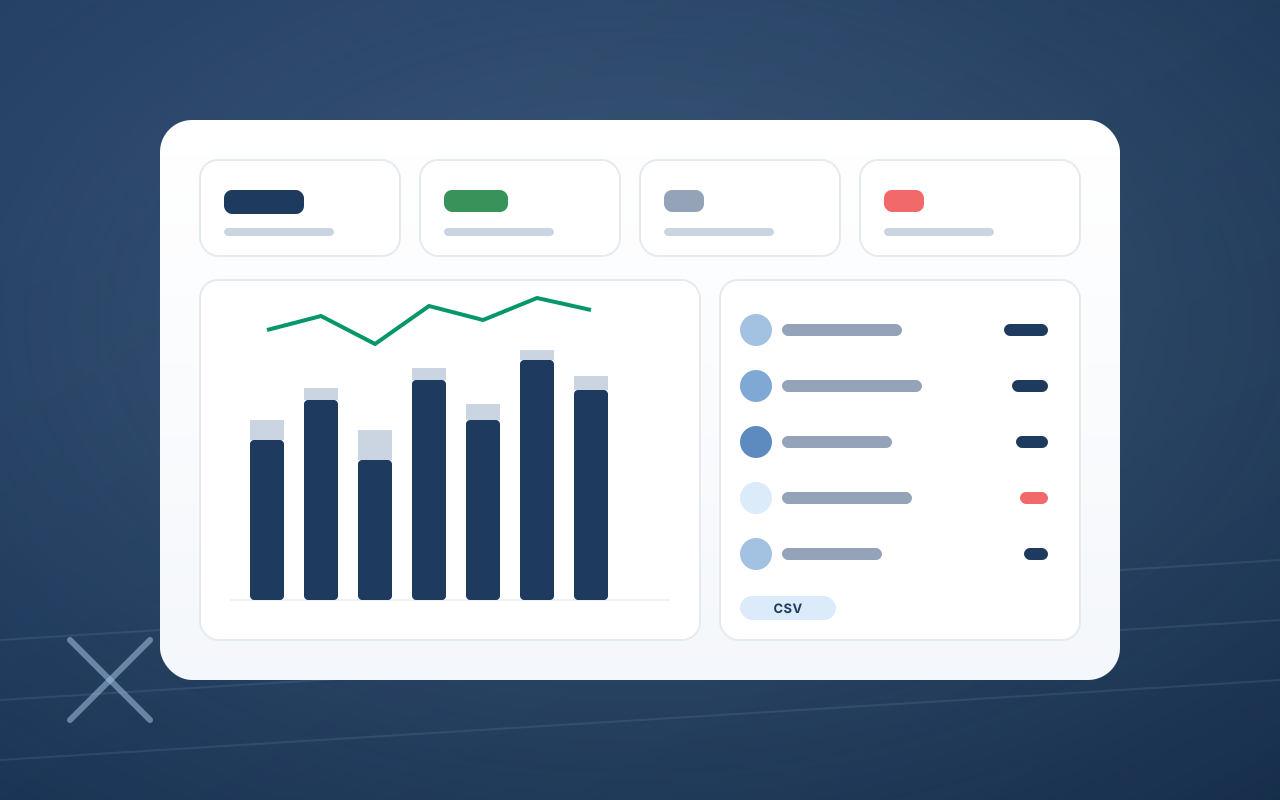
Analytics > Attendance shows your club's attendance in one glance: attendance rate, total attended, cancellations, and no-shows, a chart over time, and one sortable table with every athlete's lessons, practices, cancellations, and missed practices. Open any athlete for their complete training activity, filter by group, session type, or coach, and export to Excel. Free for every club, like all of FencR.
Every club has the athlete who used to come three nights a week and now shows up once a month, and nobody notices until the renewal date. Attendance usually lives in a coach's head, a clipboard, or a spreadsheet with a column labeled "here?" that stopped being filled in around October.
Analytics > Attendance puts it in one view. Four numbers, a chart, and one table, built from the roll calls and check-ins your staff already do.
The numbers that matter
Open Analytics and choose Attendance. The date range at the top of the page drives everything.
- Attendance rate. Attended divided by marked sessions, with a note showing how many sessions are still waiting for a roll call.
- Total attended. Every lesson and practice someone actually came to.
- Cancellations and missed. The bookings that did not happen, kept apart so a cancelled class never looks like a no-show.
Attendance over time
Below the numbers, Attendance over time charts attended, missed, and cancelled sessions by day, week, or month, depending on the range you pick, with the Attendance rate charted beside it. A dip after the holidays, a strong spring, a Tuesday class that is fading: you see the shape before you read a single row.
One row per athlete
The table lists Lessons attended, Practices attended, Cancellations, and Missed practices for every athlete, with their photo. Click any column to sort.
- Everyone shows up. Every athlete on your roster appears, including those with zero sessions, so the one who has quietly stopped coming stands out.
- Filter to what you need. Search athletes, then narrow by member group, session type (private lessons, each practice category, open fencing, camps), or coach.
- Compare a group. Pick a member group and the numbers, charts, and table all narrow to it. Your competitive squad against your recreational program is two clicks.
Sort by Missed practices at the start of each month. The top three names are the families worth a friendly check-in, long before anyone thinks about not renewing.
One athlete's whole season
Click any name to open that athlete's complete training activity for the period: their numbers, a breakdown by session type, and every session with its date, coach, and status. It is the answer to "how often is my kid actually training?" in one screen.
Export for the board meeting
Export offers Athlete summary (CSV) and All sessions (CSV), both following your current filters and opening cleanly in Excel, accents included.
Coaches see their own sessions
A coach opening Analytics gets My Coaching and Attendance, scoped to the sessions they lead or assist. The database enforces it, so a coach's report is always about their own athletes.
Where to find it
If your club is on FencR, open Analytics and choose Attendance. New to FencR? Creating a club takes about fifteen minutes, and attendance starts filling in with your first roll call. The rest of the release is in the FencR 3.0 overview.